
This article will help with creating a set of 3 rules, that add a custom header to emails that meet the executive tracking safe list criteria, but do not contain the SMTP header required to trigger it.
This is useful when an address exists in the executive tracking safe list and does not trigger the Executive Tracking rule on user sent emails, but still does on automatic replies due to their lack of SMTP sender address.
-----------------------------------------------------------------------------------------------------------------------------------
Doing all of this in a single rule does not work, as the Conditions rely on AND logic, and if any cannot be matched the rule won’t apply. Or will create holes in security.
The setup will work as follows:
- Any email the system flags as Executive tracking will be sent to the company quarantine, unless the x-Executive-Tracking-Safelist: True header is present
- This custom header is applied in under 2 circumstances:
- The email is inbounded and contained in the Executive Tracking Safe list Rule Regex
- The email is inbounded and contained in the Executive Tracking from Header Rule Regex
- These Regexes are intended to look for the SMTP and Sender name address’ to capture User sent and automated replies respectively
-----------------------------------------------------------------------------------------------------------------------------------
Method:
1. Login to the USS portal
2. Navigate to Email Security → Custom Rule Data
3. Create a Regex entry named Executive Tracking Safe list, or similar, if it does not exist.
This is the regex of the SMTP addresses the default Exec Tracking rule would normally look for, for example:
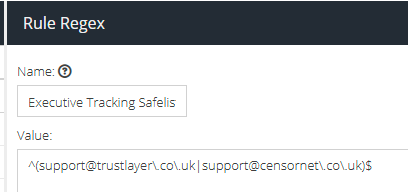
For more information on creating the regex entries based on email address, see this KB article: https://help.clouduss.com/recommend-rule-to-configure/executive-tracking#excluding_email_addresses_from_tracking
4. Save the Entry.
5. Create a new Rule Regex named Executive Tracking from Header, or similar, containing the same safe list addresses in a separate format, for example:
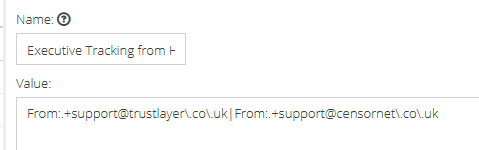
This will be used to look at the “From:” header to gather the address when no SMTP address is available, Note: It is crucial to prefix From:.+ to all entries to ensure it captures the header name and the address while ignoring anything in-between
6. Save the entry
7. Create a new Rule Regex named Executive Tracking Safe list Header, or similar, containing the below:
x\-Executive\-Tracking\-Safelist\: True
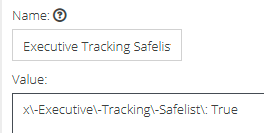
8. Save the entry.
9. Navigate to the Message rules.
10. Create a new rule “Executive Tracking Safelist Header” to append the custom header to user sent emails sent by addresses on the Exec tracking safe list Rule Regex: 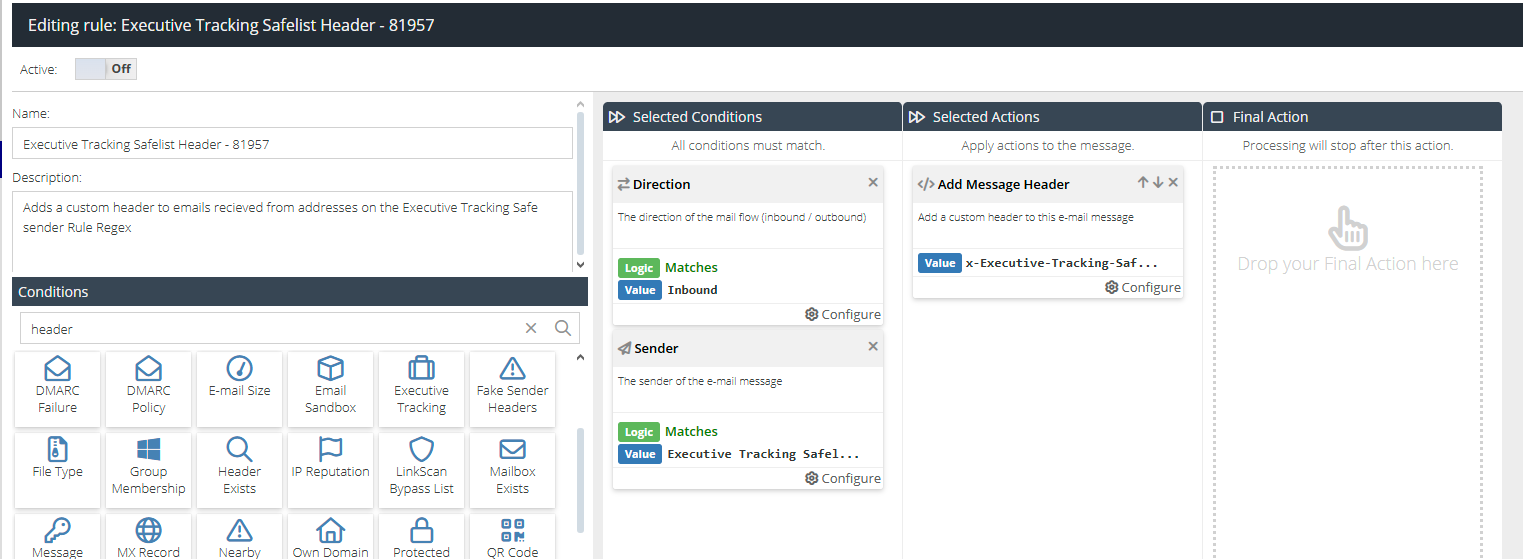
NOTE: The add message header value must be in plaintext format, e.g. “x-Executive-Tracking-Safelist: True”. You must not add the regex format x\-Executive\-Tracking\-Safelist\: True. If you do this, the rule will not apply any of the headers
11. Save the rule and navigate back to the message Rules.
12. Create a new rule “Executive Tracking From Header” to append the same custom header to emails where the FROM header has an address specified in the Executive Tracking from Header Rule Regex
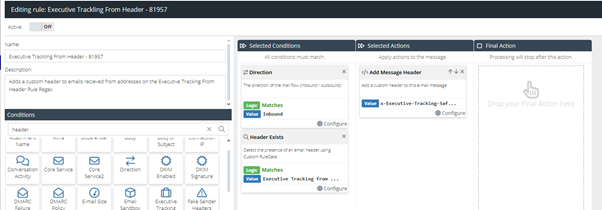
Note: please keep in mind the note from step 10
13. Save the rule and navigate back to the message rules.
14. Edit the Executive Tracking rule, which handles the final action, to be the following:
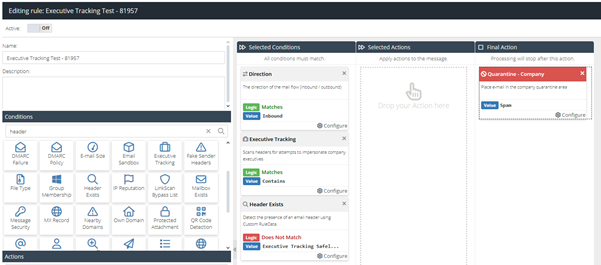
NOTE: Any existing entries should be removed so it matches above.
15. Move the rules so the newly created rules are above the Executive Tracking rule as seen here: